Edit your P4 Profile
All posts and pages you create have your style, signature, picture and bio. Here’s how to make your P4 profile unique, just like you.
📚 Manage Planet 4 > Administration > Edit P4 Profile
Before you get started
- A P4 Admin must create your profile and give you access before you are able to edit your P4 profile.
- For your Author Profile to appear on your Posts you must add a Bio, a profile picture is optional.
- The Author’s page will be linked only if the post is assigned to an author. In case of “Author Override” (Create Posts > Author Override), the author’s name will be there but it won’t be linked to the author’s profile page.
Edit your Profile picture (avatar)
The profile picture used in P4 is fetched from your Greenpeace Google profile. So in order to have a picture being part of your P4 profile you just need to set it up on Google first.
- Login to your Google workspace account using your Greenpeace email.
- Browse to “Personal Info” from the sidebar. There you can pick or change your Profile picture.

- Now go back to P4 and login again. If you were already logged in, you will have to logout and login again for the new Profile picture to be fetched.
Edit your Bio
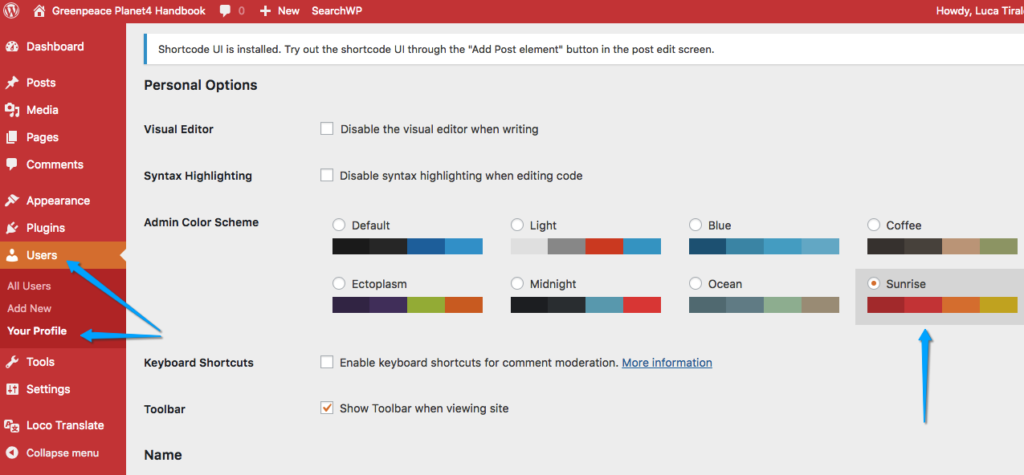
🔎 Where can I find this ? Dashboard > Users > Your Profile

Translate your Bio (for multi-language sites)
🔎 Where can I find this? Dashboard > WPML > String Translation
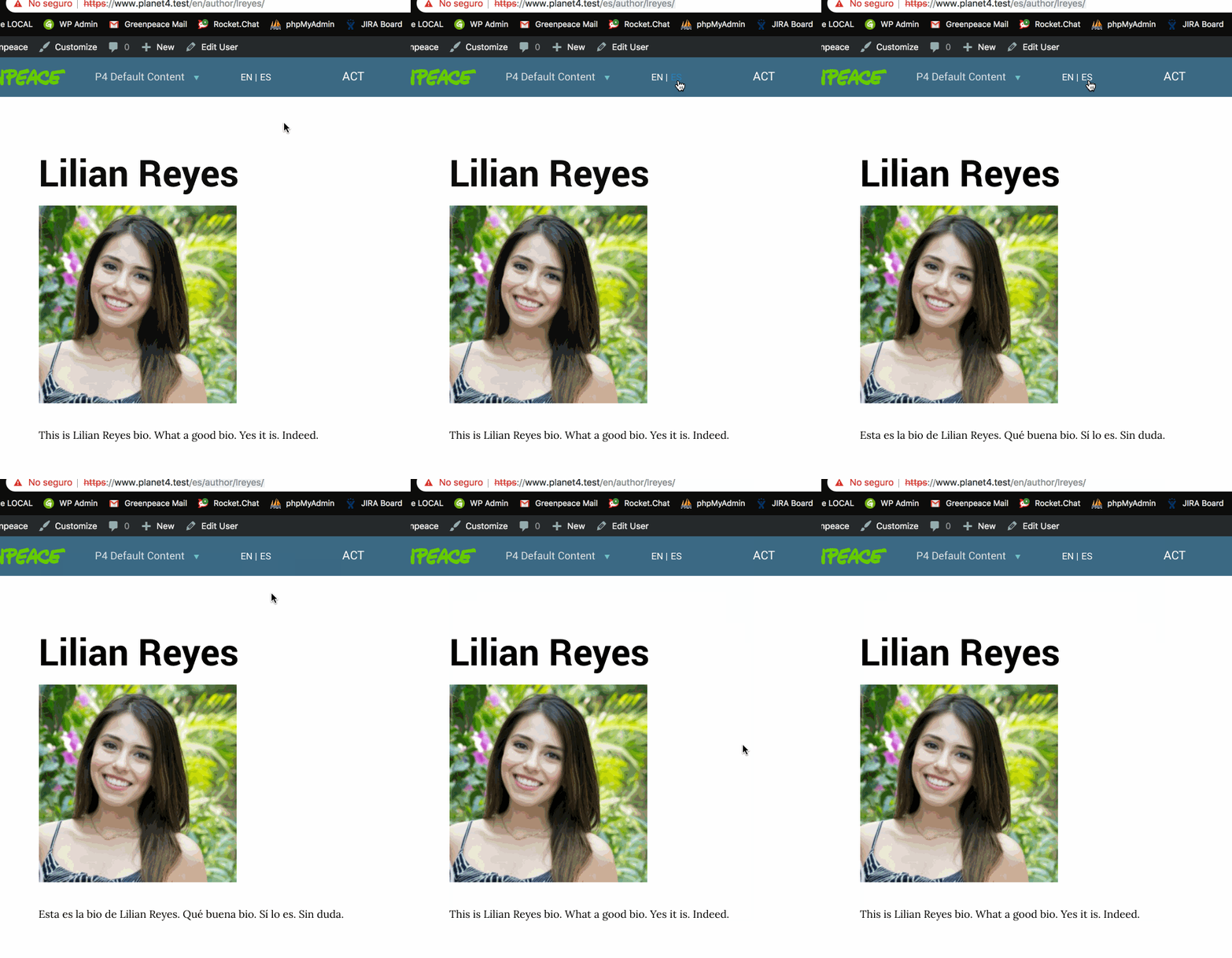
For multi-language P4 sites, it is possible to translate authors’ bios:
- Go to WPML’s > String Translation and add authors as translatable strings

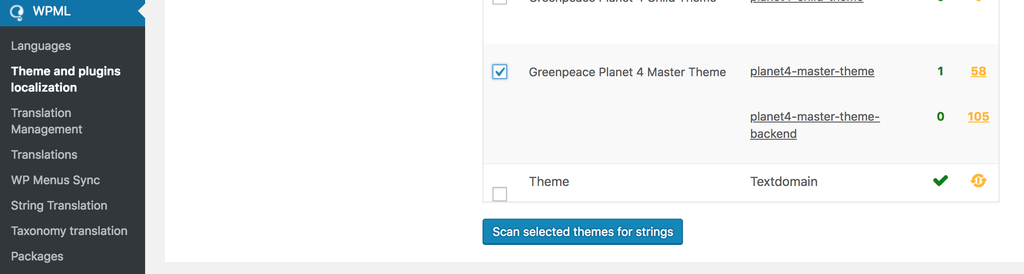
- Go to WPML’s > Theme and plugins localization. Scan the template for translatable strings, this should collect the authors strings for translation:
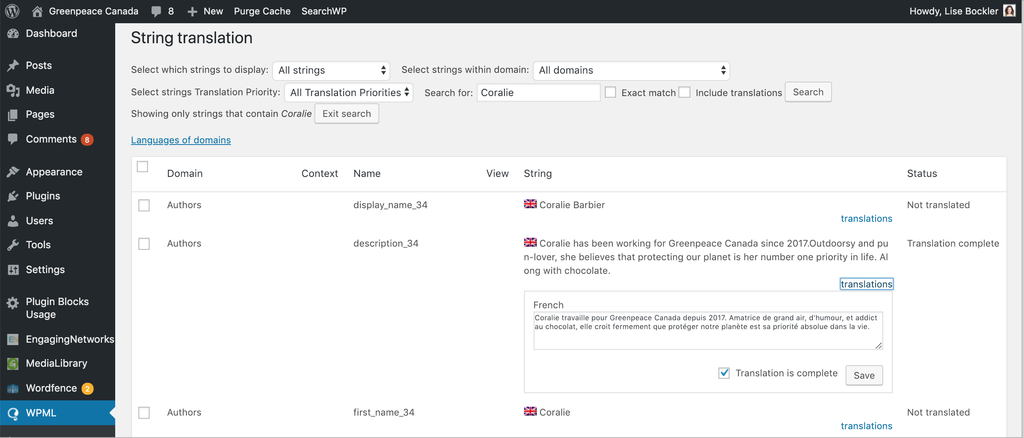
- Go back to String Translation and edit the corresponding author bios:
- Enjoy your new translation.
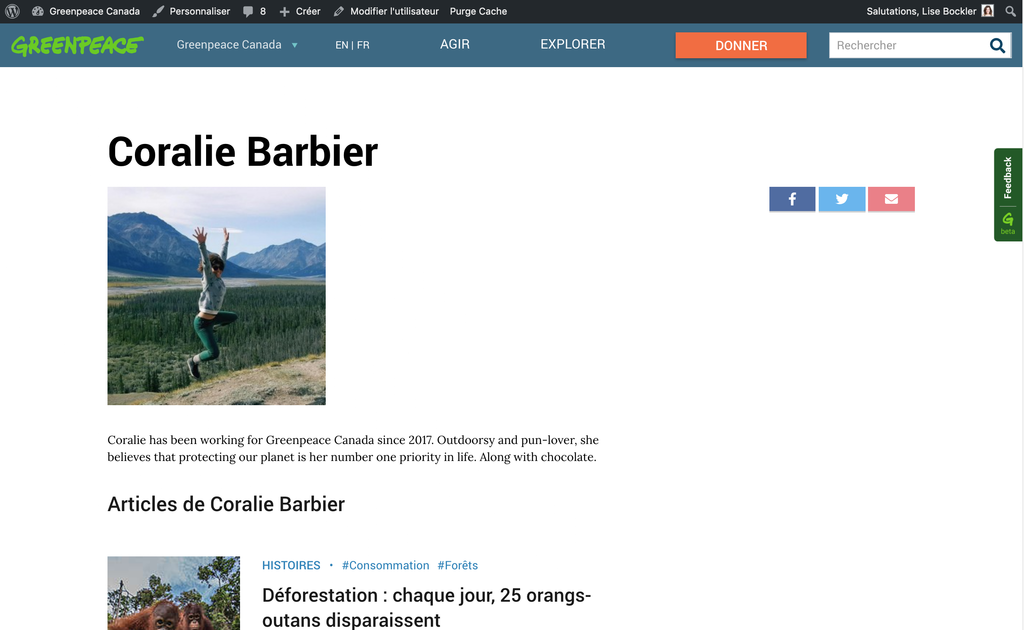
🤔 Key Info : For the language switcher to show, the author must have written posts in both languages. Authors should have their bios in both languages to appear. If YOU translate a post to test this, remember to change the post’s author to the corresponding author, otherwise, the translated post will belong to “admin”, your user.
Here’s also an animated preview with the final result:
Check your profile!
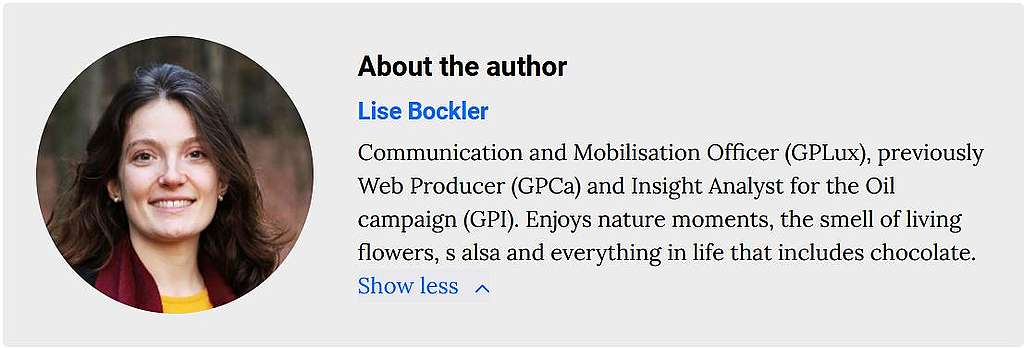
You can always go to any post you wrote and check how your Bio at the bottom of the post looks.
Editing an Avatar for someone else
If an Editor has left the Org, are not able to change the Profile picture themselves, or would never login to P4 (e.g. Exec Director), then an Admin can update the Avatar for them. There are two important things to know:
- The User account will not be associated with their GP email address. Which means they will not be able to LOGIN to P4 with this profile, and they will not get email notifications for comments on their posts.
- The process of adding or changing their Profile picture involves you creating a WordPress Gravatar account.
⚡ For existing staff, we encourage you to create a P4 account for them – all they have to do is login once. Even if it’s a functional / service account you can still set up a Profile picture in Google, create an account in P4 with that email and just login.
These are the steps you need to follow:
As an Admin: To change an Editor’s Avatar you must use an email address to which you have access in order to complete this process.
- Determine a new email address – You aren’t creating a NEW email, you are going to simply use your own and append it with an unique ID.
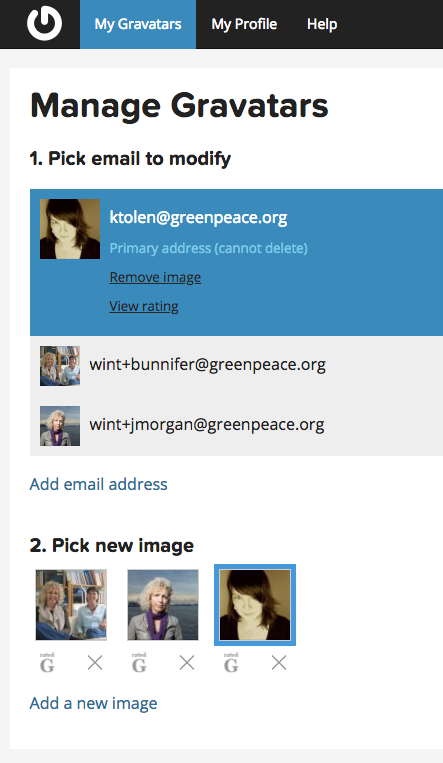
- Because WP will not allow you to use the same email for multiple users, use your own (or any GP email you have access to) + their Global ID (or some other unique identifier) e.g. I used my Intl Web Admin email, [email protected] and appended it with Jennifer Morgan’s Global ID for her Avatar: [email protected]
- Sign in to Gravatar.
- Click on ‘Add Email’ and enter the new address you created, e.g. [email protected]
- Gravatar will send an Email to you to verify the email addition.
- Go to your email and click on the link to verify the new identity.
- In Gravatar, choose the new email address you want to modify.
- Upload a new image or select an existing one.
- Save Changes.
- Update their P4 User Profile by putting this new email address into their Content Info, e.g. [email protected]
- Save Changes.
- Hit refresh in P4 to confirm the new Avatar is appearing.
Change the appearance of the Admin Panel
If you are managing multiple WordPress or P4 websites, different menu colours are super useful to quickly realise which site you are working on.
See the red menus of the snapshot below? It’s a color scheme called “Sunrise“.