
Block: Timeline
📚 Create Content > Blocks > Timeline
Definition & Purpose
Definition
The timeline block is a type of graphic that arranges a chain of events, activities, and milestones in chronological order.
Purpose
Tells a story by illustrating the achievements and milestones from campaigns and Greenpeace’s history.
Getting Started
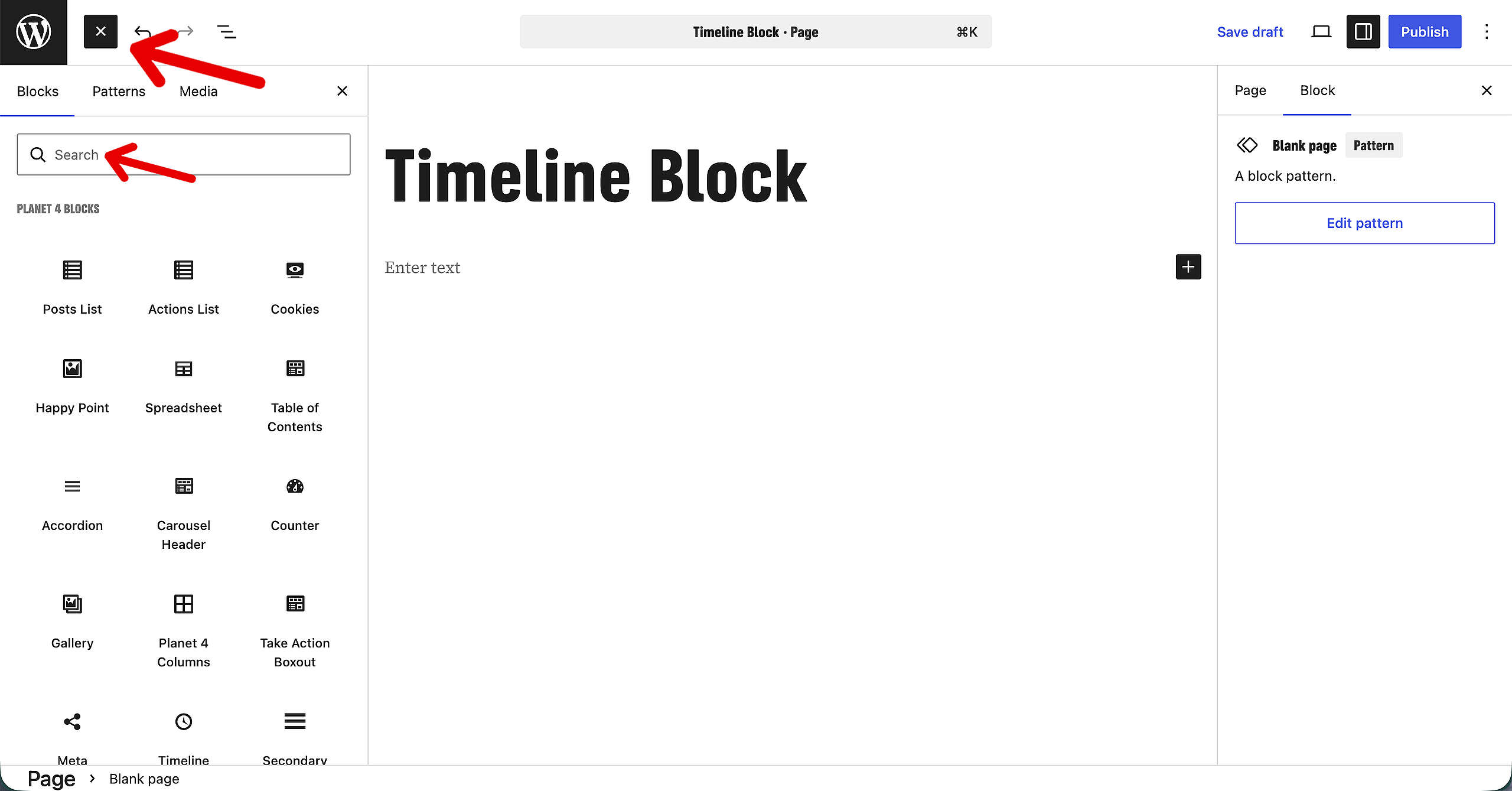
On your Page, go to the top left and click the + icon to open the Blocks overview. In there, search for the Timeline Block. Click on it, to add it to the page.
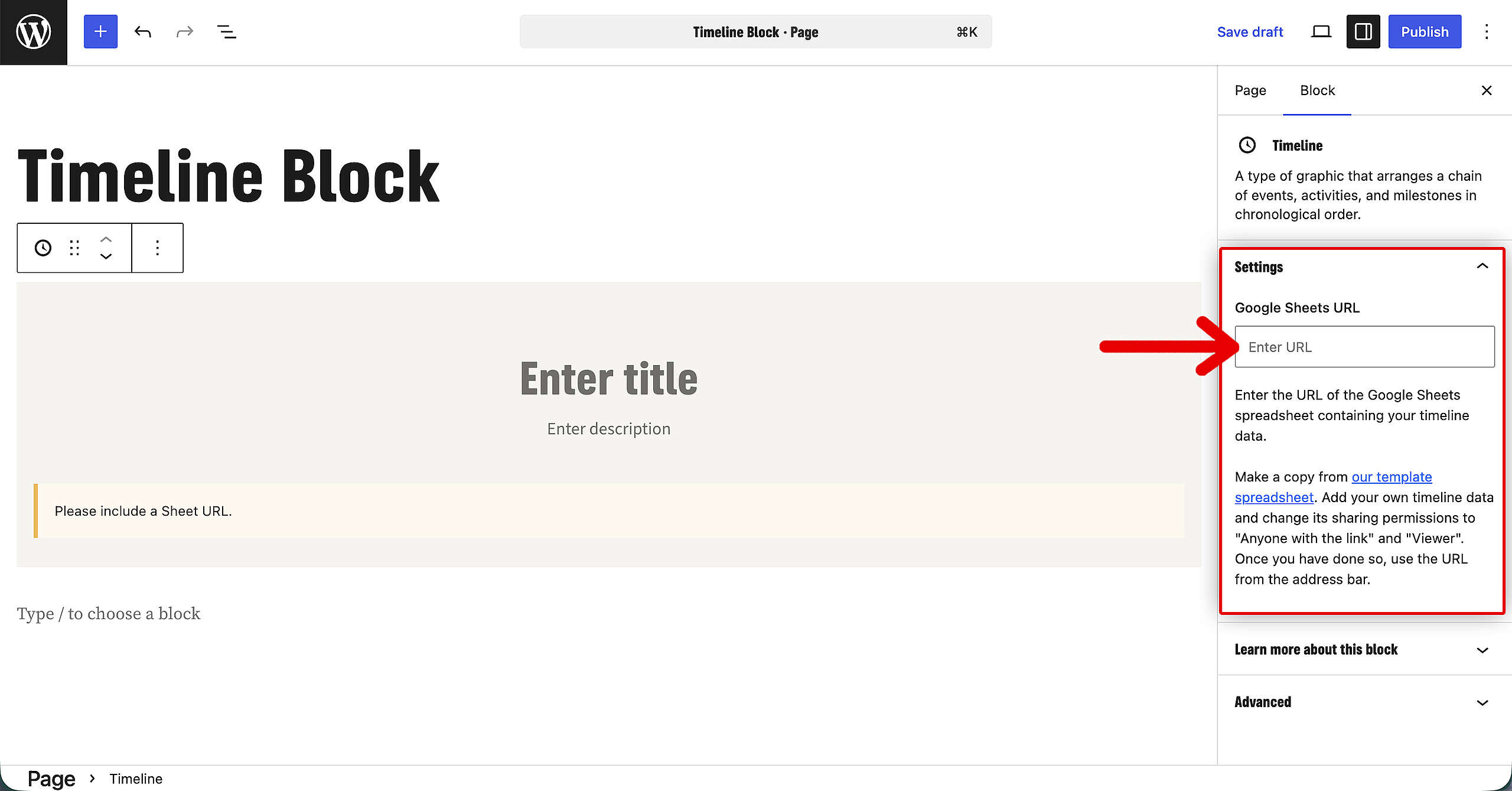
On the right, in the sidebar that includes the Block settings, insert the Google Sheets URL.
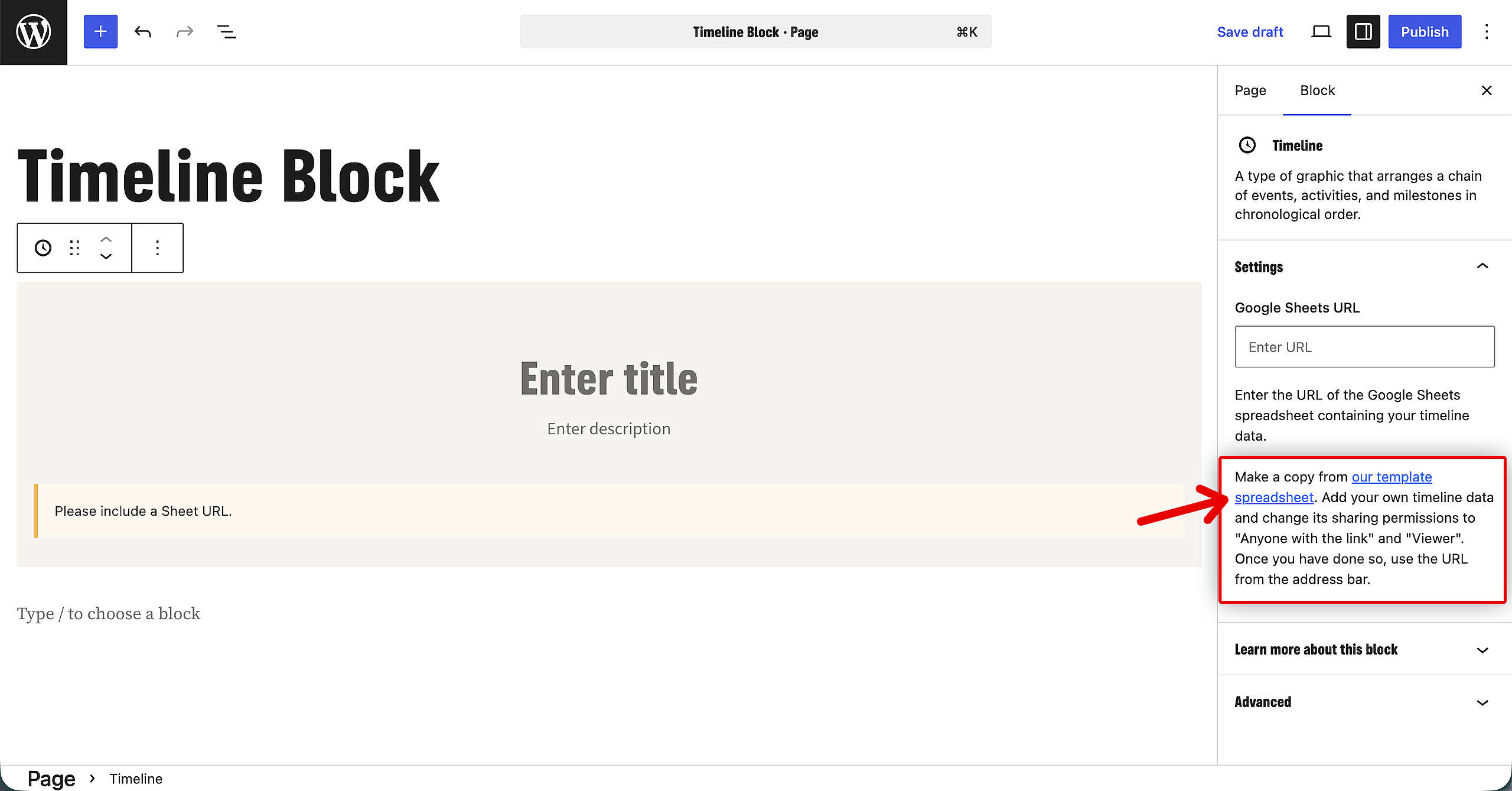
Don’t have a Google Sheet link yet ?
In case that you don’t have a Google Sheet URL yet to connect to the Block, click on the Template link in the sidebar. Or, just click here to get to the Template.
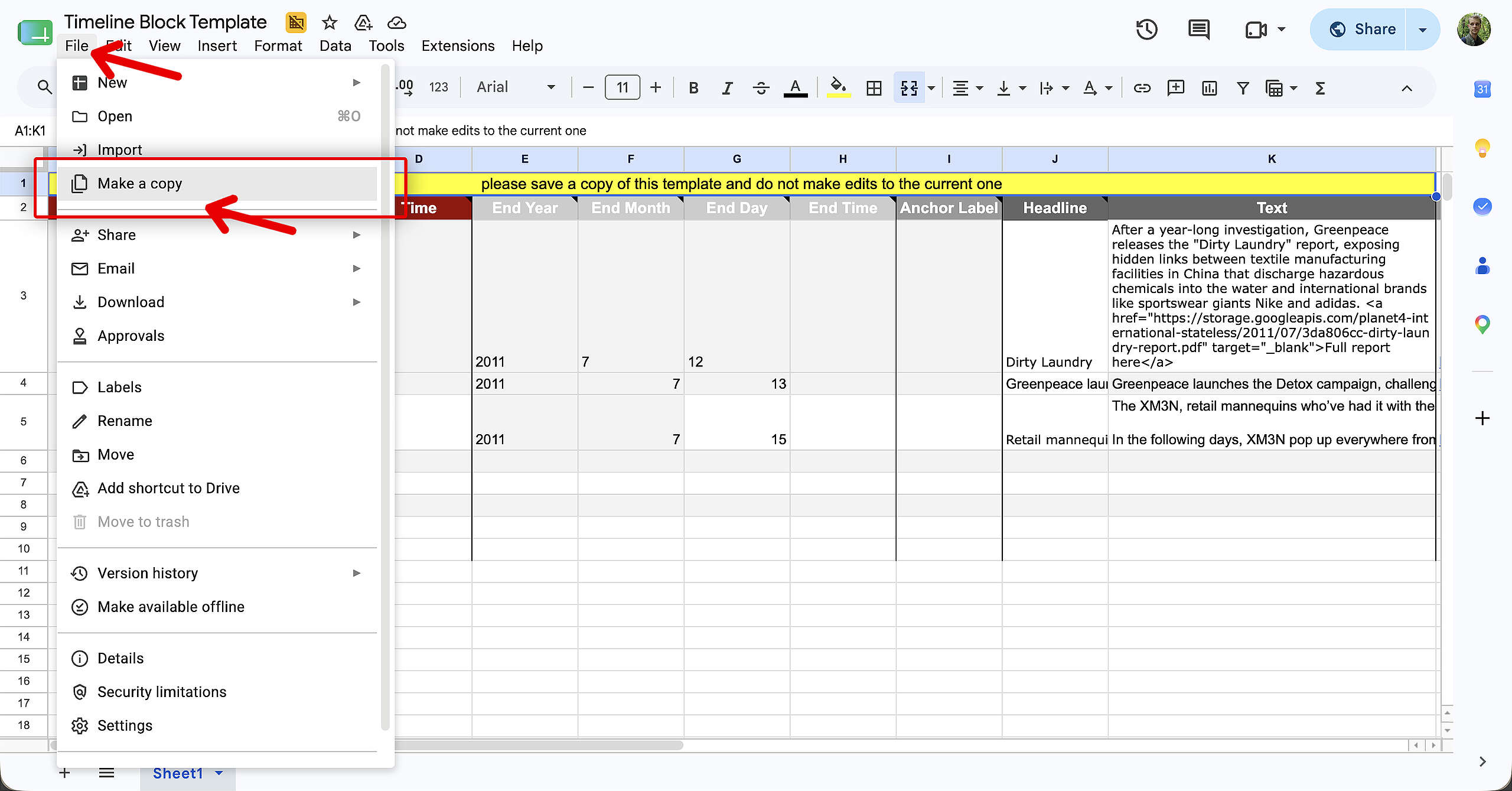
⚠ Important: Make sure to copy this template to a new sheet and not use the one provided from the link.
How to copy a Google Sheet

Using the Google Sheet Connection
Now, onto the Sheet template for the Timeline Block. Keep in mind to delete the text in the yellow box, otherwise the Block will not work.
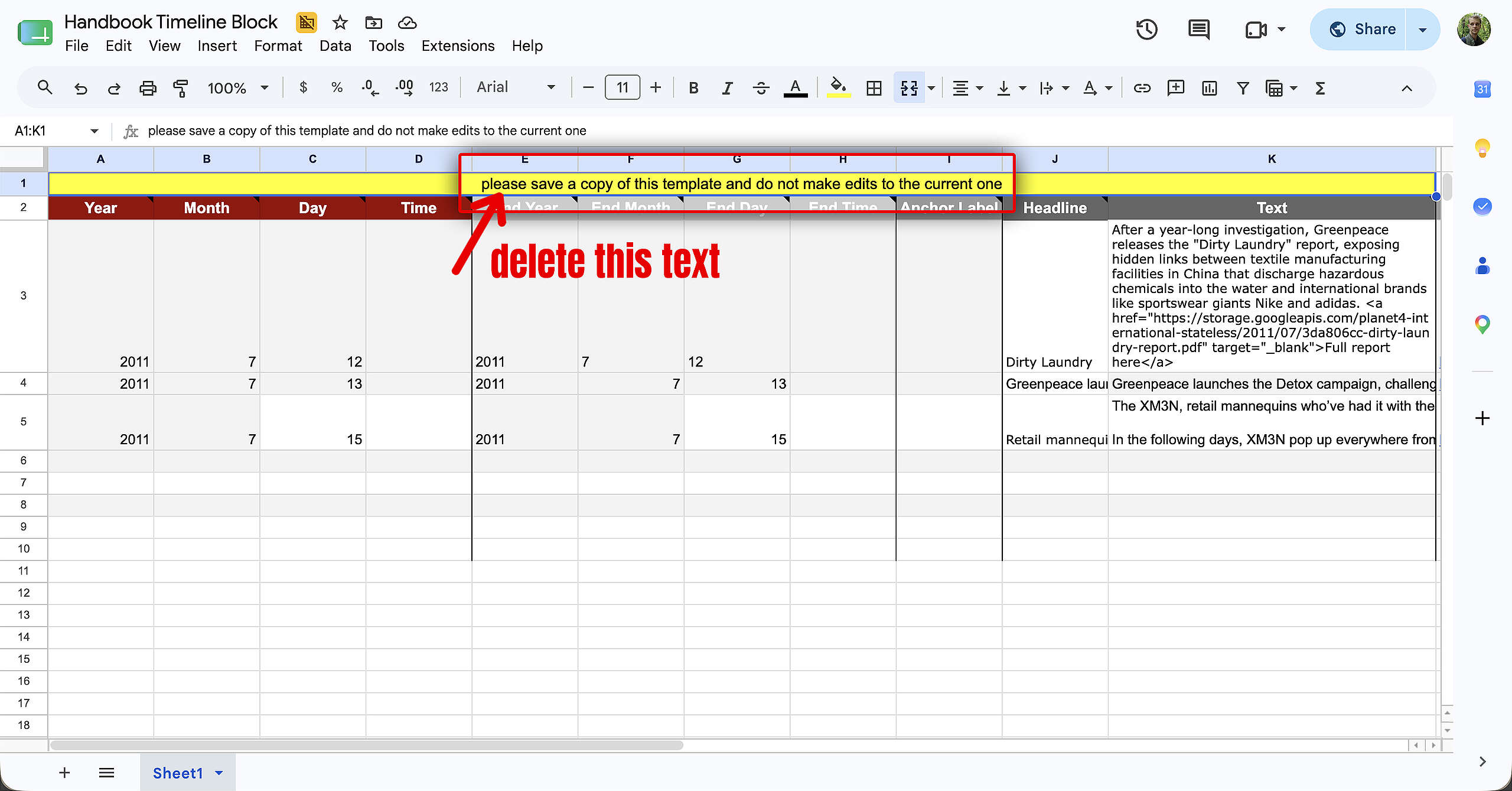
Fill in all the details in the correct column. As a Google Sheet automatically saves in the background, there’s no need to save. However: Do make sure to change the sharing permissions to “Anyone with the link can view”.
Finishing the Timeline Block
Time for final touches. Add a title and description about the Timeline itself.

Replace Year Label with something else
By default, the Timeline Block will take the year columns from the Google Sheet as labels. However: you can change that, and have it say “climate” for example. In the Anchor Label field, type in your category (or something else, up to you!). This word will replace the year labels in the Timeline.
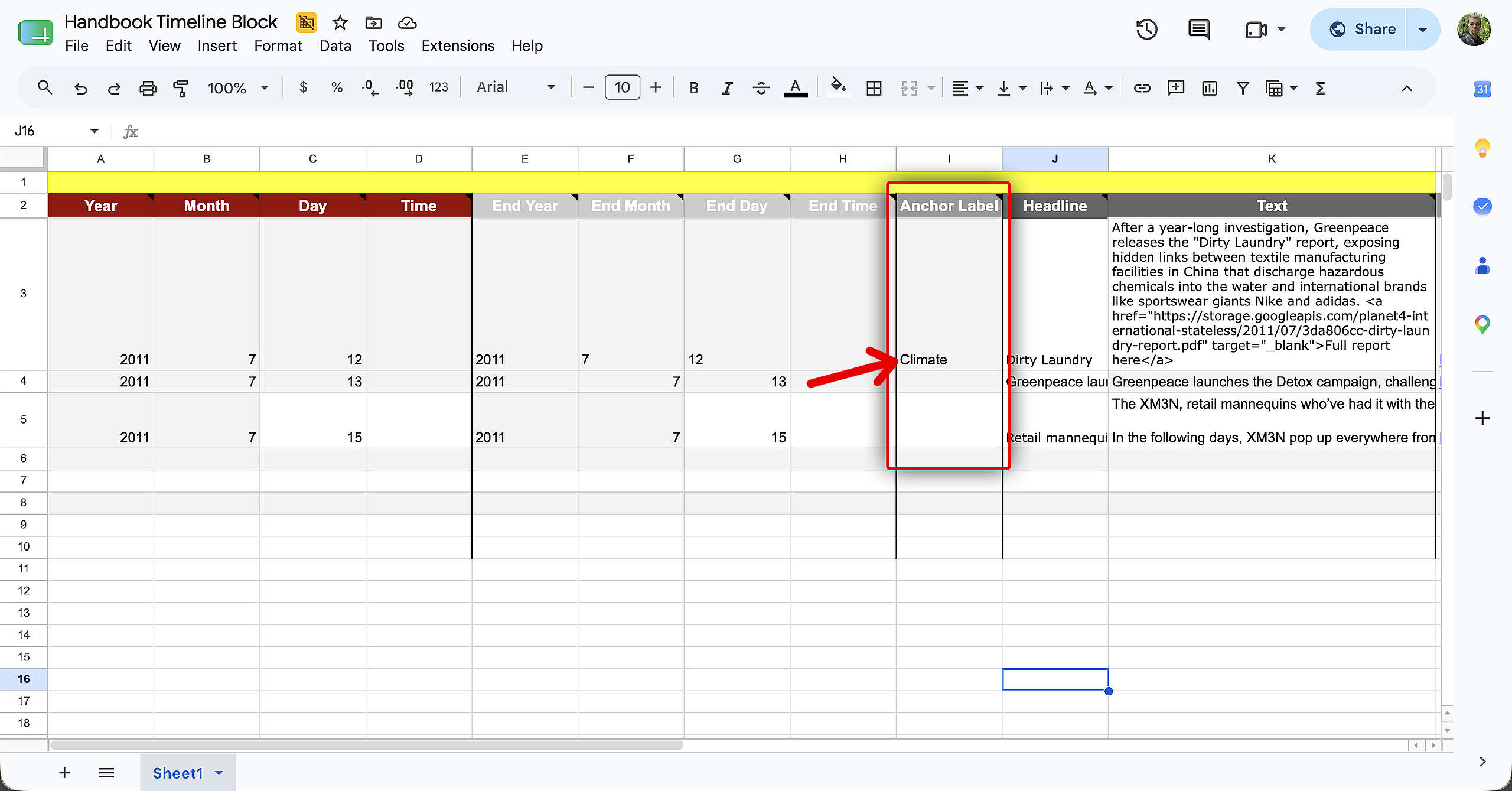

Note: Keep in mind to not make this Anchor Label text too long. On smaller screens, such as mobile, an elipsis (…) will be shown if its too long.
Also, good to keep in mind: Lets say that you have 5 events under 2011. And in each event you write something different in the Anchor Label. The timeline will only pick up the first one. So make sure the label is relevant to all those items under 2011.
Possible Error in Older Sheets
If you’re using an older Sheet, it may be possible that the Anchor Label column is called differently. In the original document, it was called DisplayDate. This may lead to some errors, so make sure to change the name of that column to Anchor Label (see screenshot just below), to make sure the sheet connection works.

Result
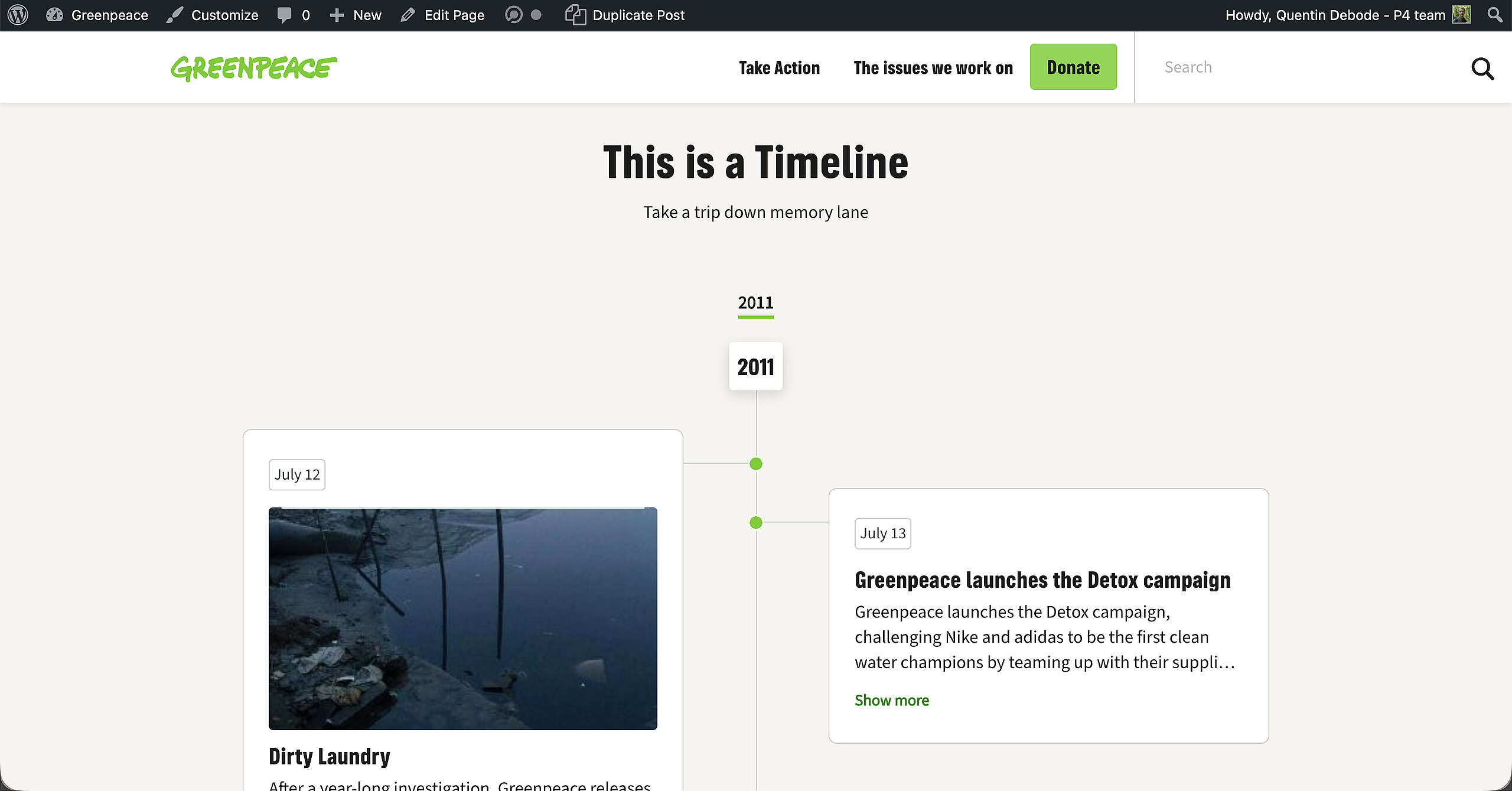
Publish (or save) the page, and this will be the result! A beautiful, new, interactive Timeline.
Common Mistakes
Google Sheet Not Connecting
After you’ve made a copy of the spreadsheet template and populated all the fields, and you’ve copied the URL into the sheet, it sometimes happens that the Timeline doesn’t load or work in the Block. The most common mistake for this are the sharing options.
In the spreadsheet, go towards the top right and click on Share.
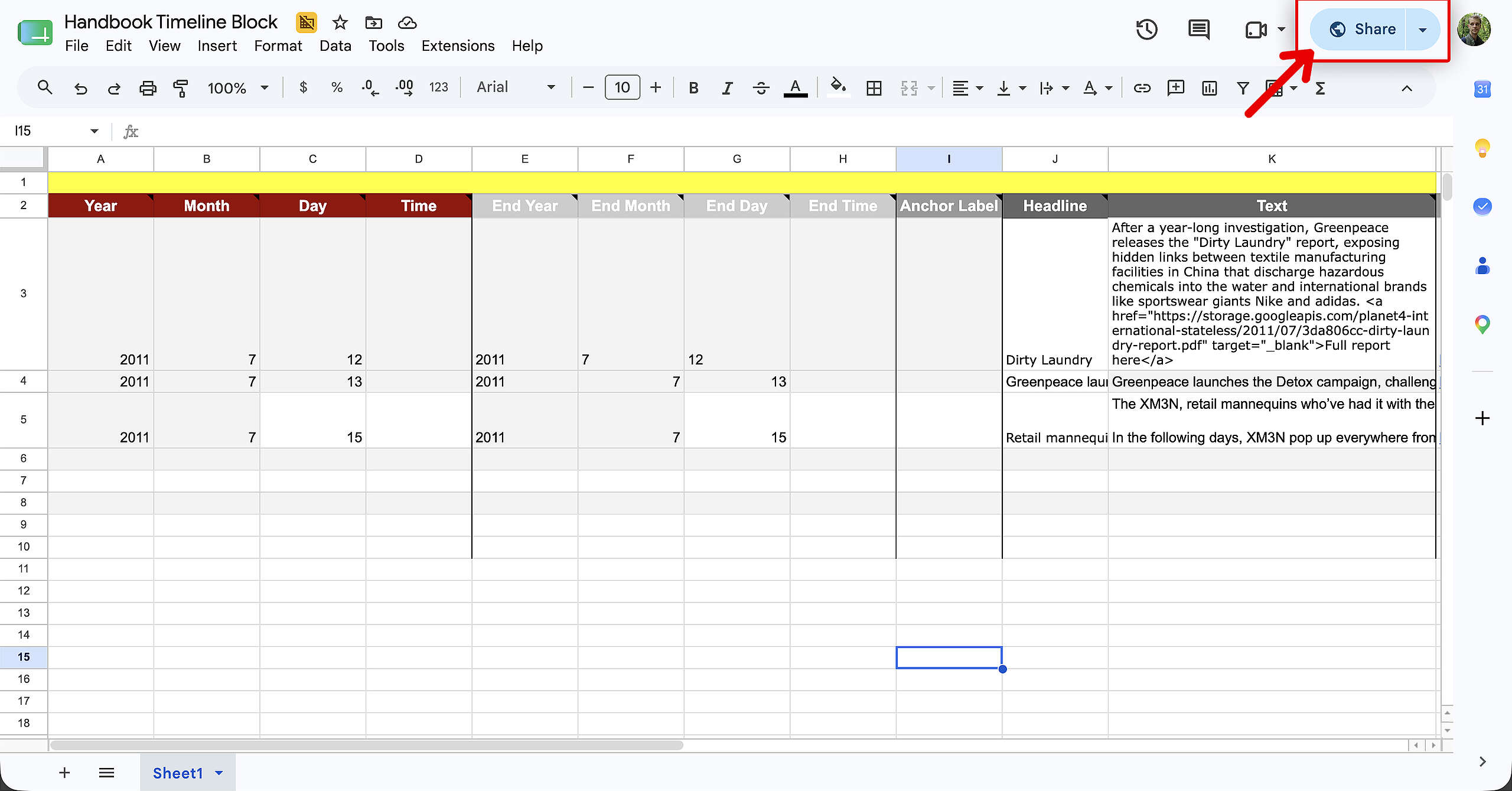
A new window will pop up. Make sure that the General access is set to “Anyone with the link”, and make them a “Viewer”.

This often solves the problem with the Timeline Block. If there are still issues, make sure to get in touch through the #p4-general Slack Channel.
“Undefined” in the Timeline
In case “undefined” still shows up on your Timeline, it means that the yellow text in the Google Sheet hasn’t been removed yet.

Make sure to delete the text in the yellow background. This will make sure the years will show up instead of the “undefined” label.
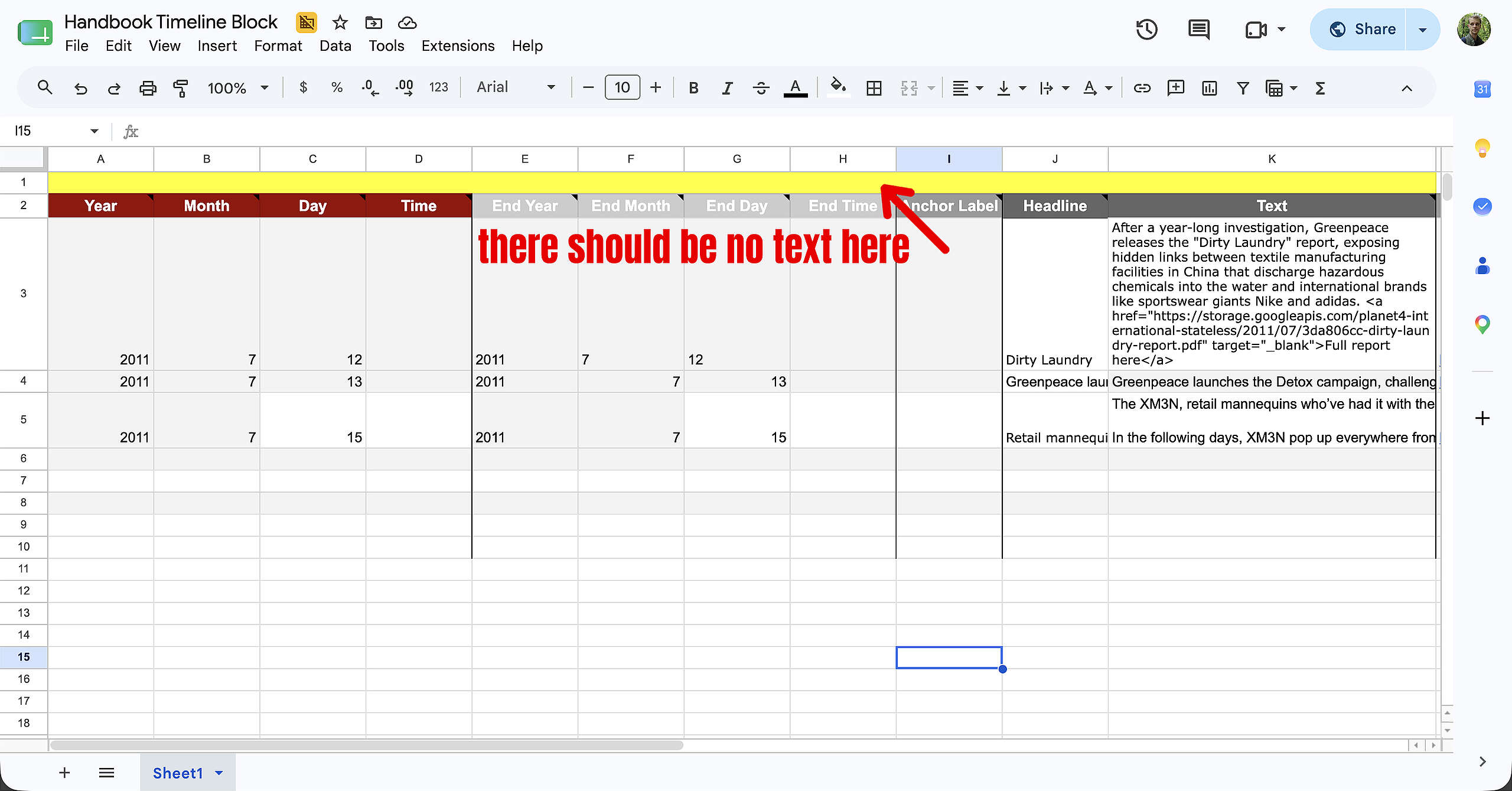
Note: this can take some time before it applies. Give it up to five minutes, if its still not fixed after that and you’re still seeing the “undefined” text in your Timeline, please reach out to the Community on Slack.
Links & Resources
Set up the P4 GTM container
Create P4-Alike Petitions in your Advocacy tool (Engaging Networks, Hubspot..)
Integrate P4 with other Engagement Systems
Create P4 Donation pages (also in Engaging Networks)