Block: Meta
An Embed-style Block for Facebook and Instagram content!
📚 Create Content > Blocks > Meta
Definition & Purpose
Definition
The Social Media block is an embed-style block, customized to display and align content from Facebook and Instagram by inputting the URL.
Purpose
Easier for editors to input social media content quickly and efficiently, allowing end-users to interact with content directly.
Social media content supported
- Facebook: pages, post, photo, video
- Instagram: posts
Add the block to your page
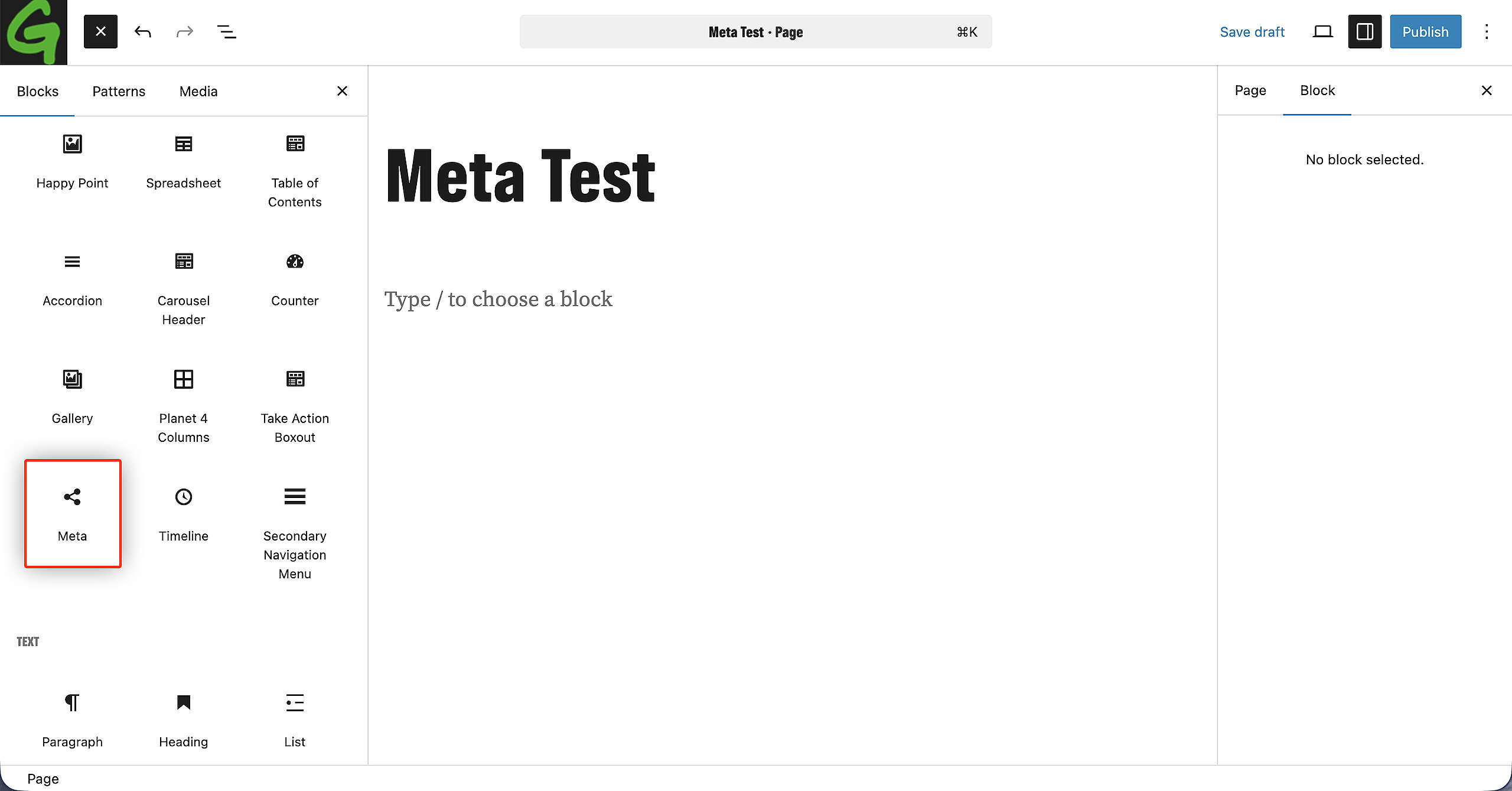
On a Page and/or a Post, you can find the Meta Block in the Blocks overview. Drag and drop it into your Page/Post.
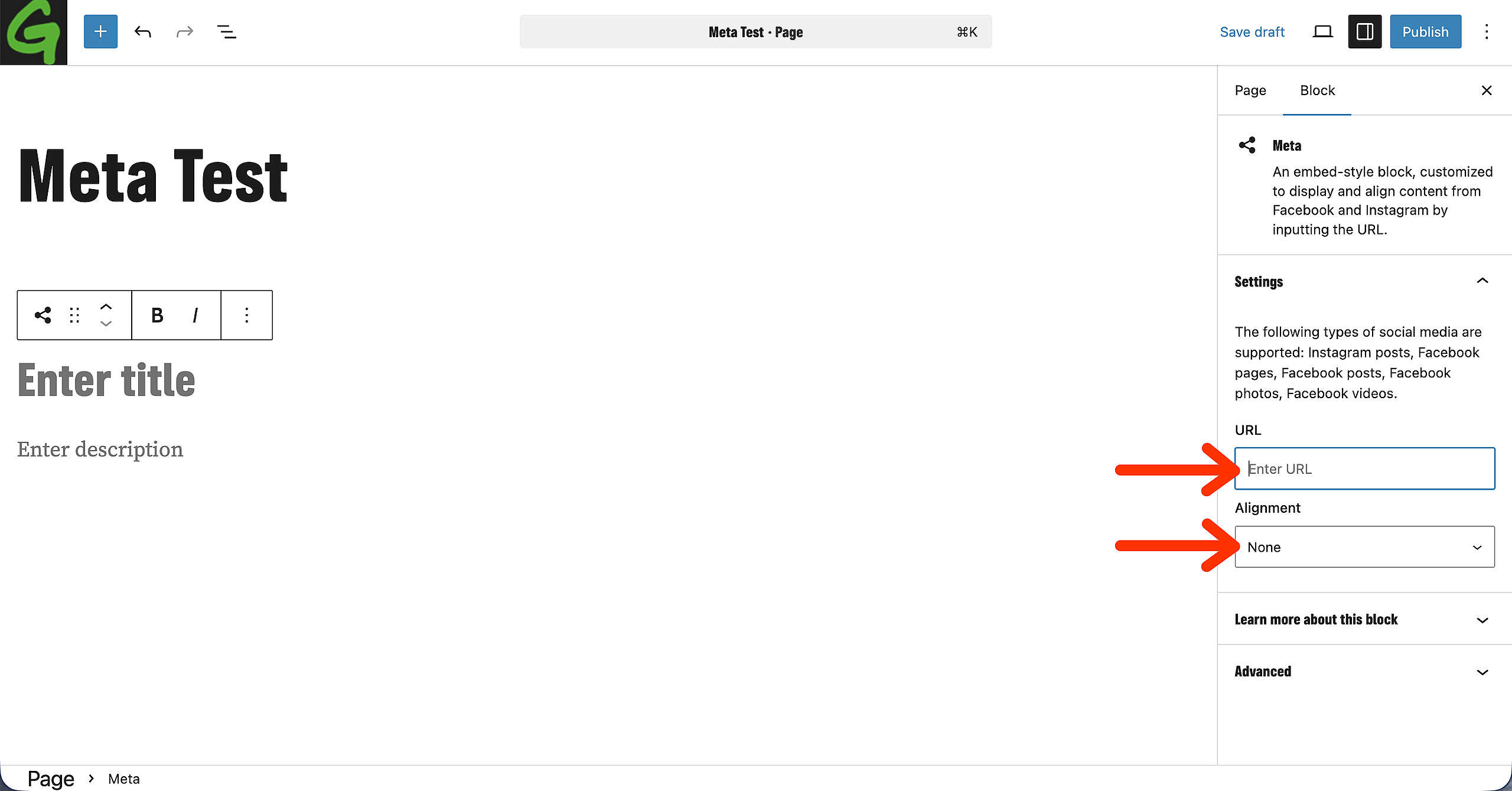
The settings can be found on the right. A place to copy the URL into, and to choose how to align the Block into the page.
Get the link from Social Media
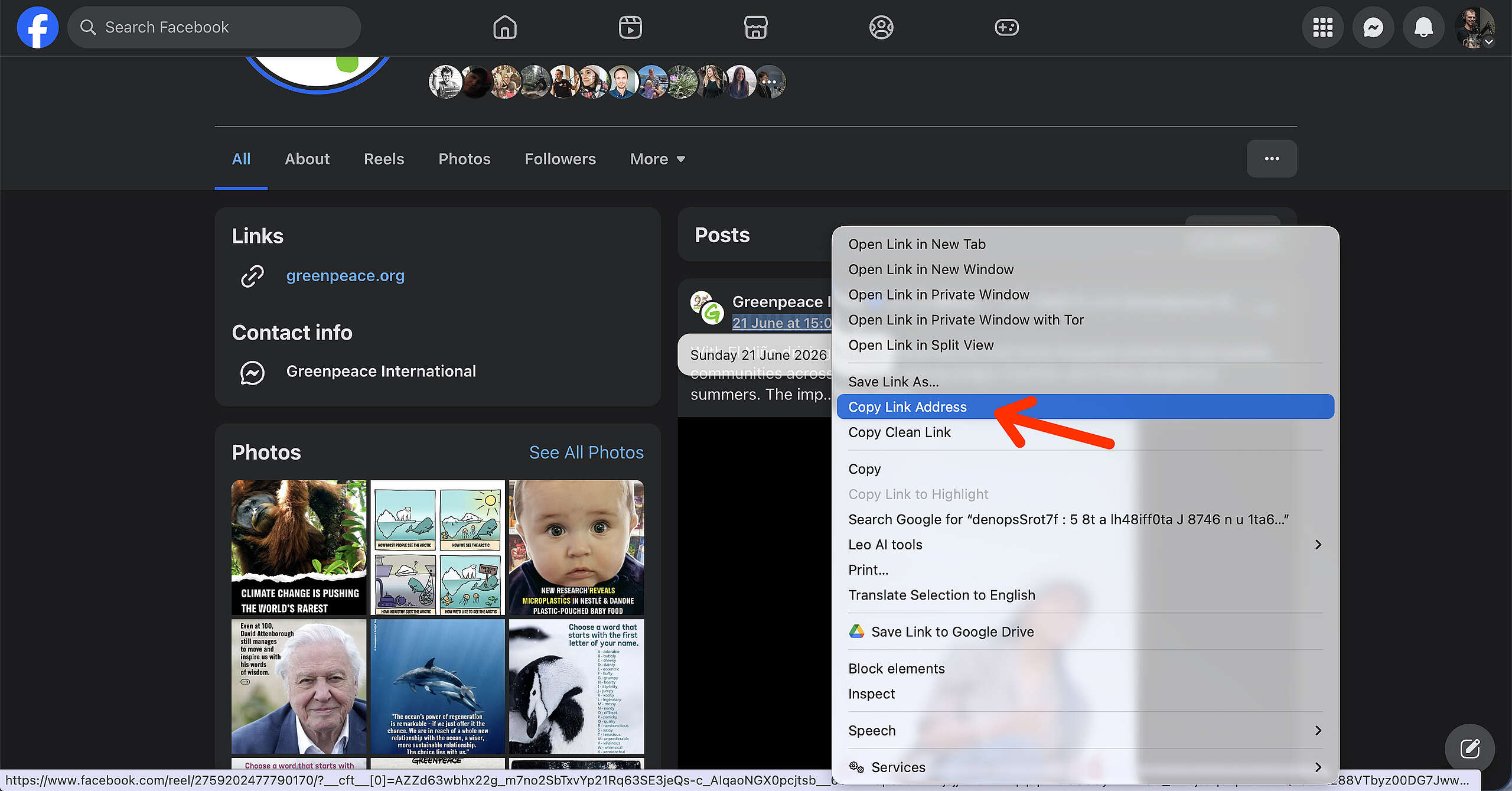
Go to a Facebook or Instagram page and find the post you want to insert into your P4 website. On that post, make sure to find the date stamp, that’s what we’ll need for the next step.

Right click on the date, and copy that link address. It’s that URL we need for the Meta Block embed to work.
Finish and Publish the Block
Once you have to URL ready, copy it into the URL bar in the Block Settings on the right. Under that, you can choose how to align the Block in your Page/Post. Left, center or to the right.
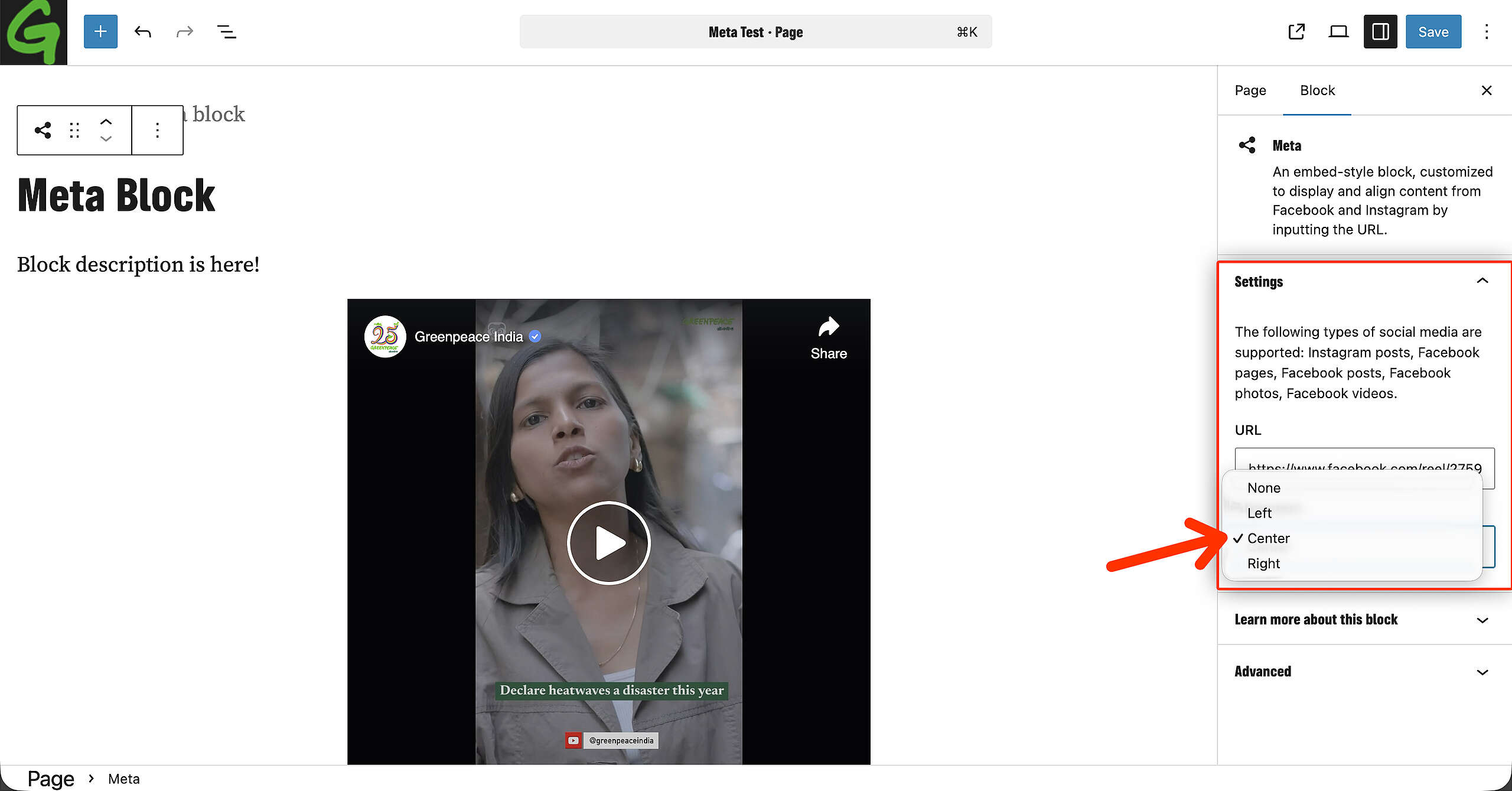
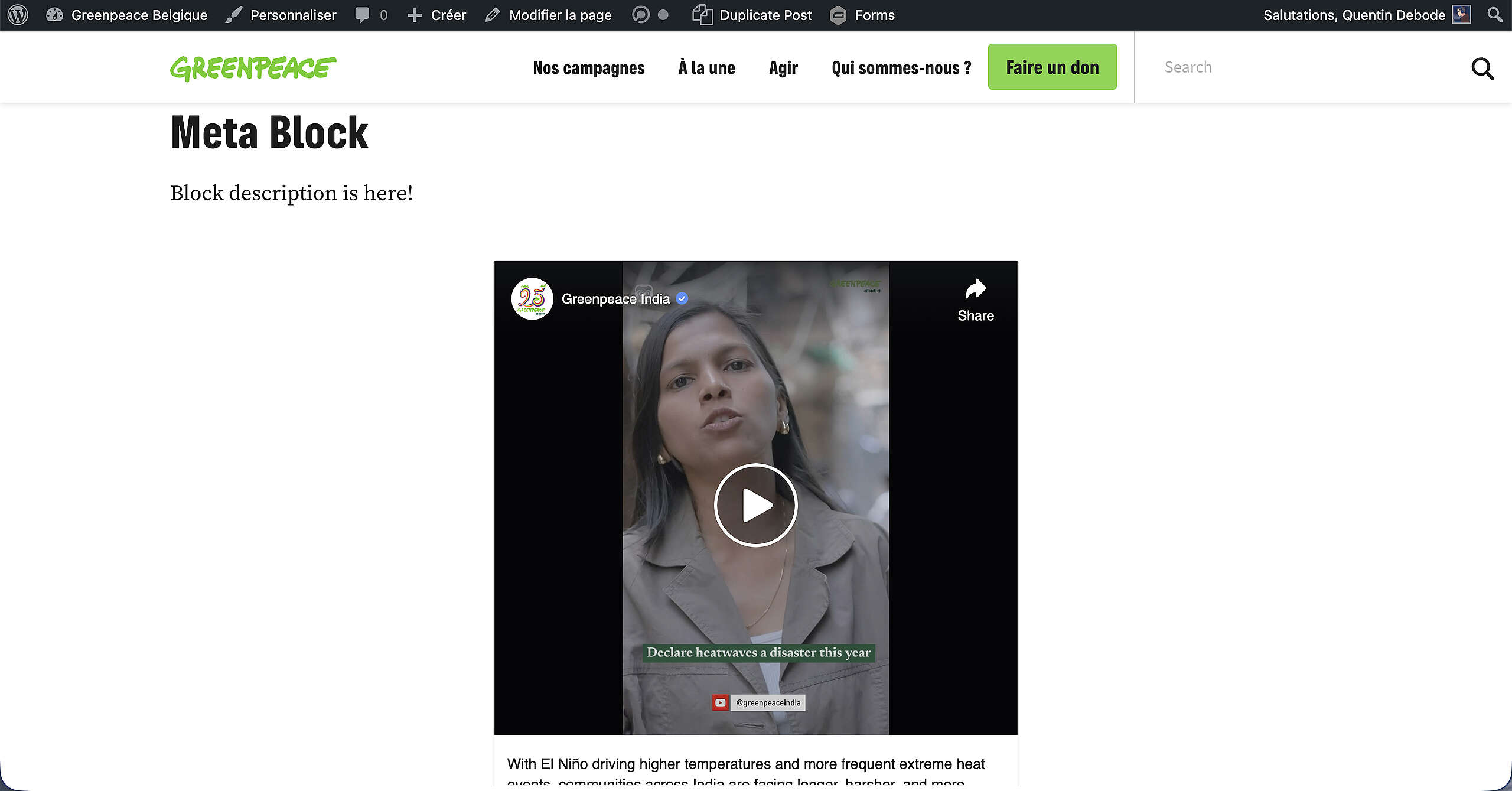
And Publish! This is how it will now look on your P4 website: